
Are you missing out on features that could make communication clearer and everyday work easier? Here are 10 tips for getting the most out of your digital signage with PinToMind!
1. Explore a variety of content
PinToMind offers more than 15 different post types! Display everything from simple messages to calendars, weather, news, social media posts and much more. Try different formats – variation makes your digital signage both more useful and more engaging.

2. Share information with PinToMind Go
You don’t want to miss this! Did you know that with PinToMind Go you can share channels directly to people’s phones? Perfect for groups that need quick and easy access to information, especially if they’re not always near the main screen - like employees, students or parents and guardians.
More and more organisations use Go as a safe, algorithm-free alternative to social media. Everything you share appears in the app, and you can send push notifications to make sure important updates are seen.
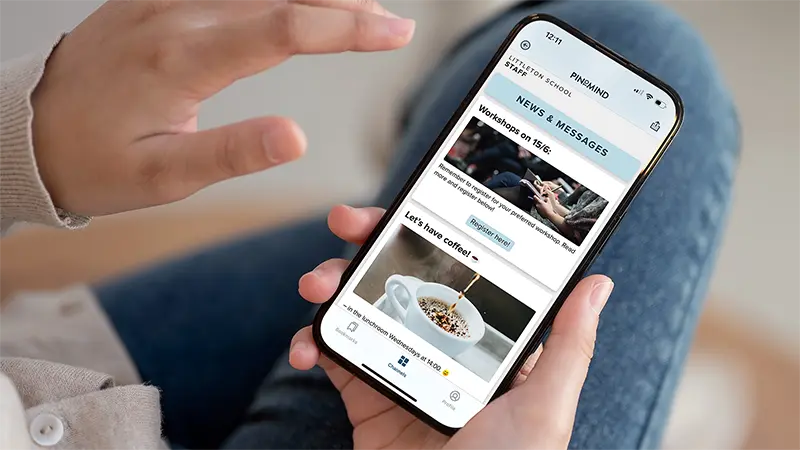
Mobile channels in Go are included in all subscriptions – at no extra cost. How many mobile channels you can share depends on your plan.
Want to learn more? Watch the short video below (1:43 min), or take a look at these helpful Go articles on our support pages.
3. Invite more users
There is no limit to how many users you can add to your account. Invite colleagues to collaborate and share responsibility for content and administration – it makes everyday work easier and screens more up to date.
You can also control user permissions, so everyone has access to what they need – and nothing more.
Watch the video below for a quick walkthrough on adding users (1:33 min), or learn more with this helpful guide on user administration.
4. Customise layout and design
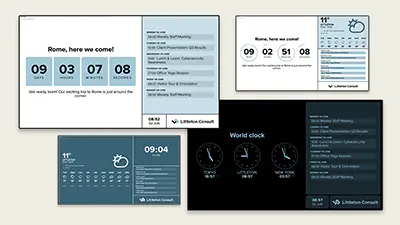
Each channel can have its own layout – with one or several content areas. Even for multi-area layouts, you can choose to show selected posts in full screen whenever you wish.
You can also choose a theme for the channel. Use a ready-made theme, or customise it with your own colours, fonts and logo to match your organisation. If you want a background image, you’ll find that option in the theme settings as well.
Whether you use a template or create your own look, it’s easy to give your screens a design that feels stylish and professional.
5. Use all your screen displays
Your subscription includes a certain number of screen displays – make sure you use them! An extra screen placed in the reception, the canteen or staff room might help more people see important information.
Connecting a screen is easier than you might think. Use this guide, or watch the video below for a quick walkthrough (from 0:54 if your screen is already set up with PinToMind):
6. Create more channels
You have a fixed number of screen displays, but you can create an unlimited number of channels. This is useful for preparing content for different audiences or time periods. You can quickly switch which channel to show on your screen.
7. Keep images and files organised
Got lots of images and files? Create media collections and folders to keep things organised and easy to find when creating new content.
8. Strengthen account security
PinToMind supports both two-factor authentication and Single Sign-On (SSO). This adds an extra layer of security – especially useful for larger organisations and when many users share the same account.
9. Network – better together!
Do you have several PinToMind accounts, for example across departments, locations or schools? With a PinToMind network you can share posts, channels and resources to member accounts. They can reuse shared content – or allow the network to publish content directly.
The feature is free for everyone, but needs to be enabled by us. Get in touch and we’ll help you get started.
10. Helpful resources and support
You’ll find plenty of insights and tips on our blog, and step-by-step guides for most topics on our support pages. We also offer this series of short videos with tips and inspiration.
And remember – you’re always welcome to contact our Customer Success Team if you have questions or want advice on getting even more out of PinToMind.






 Back to top