

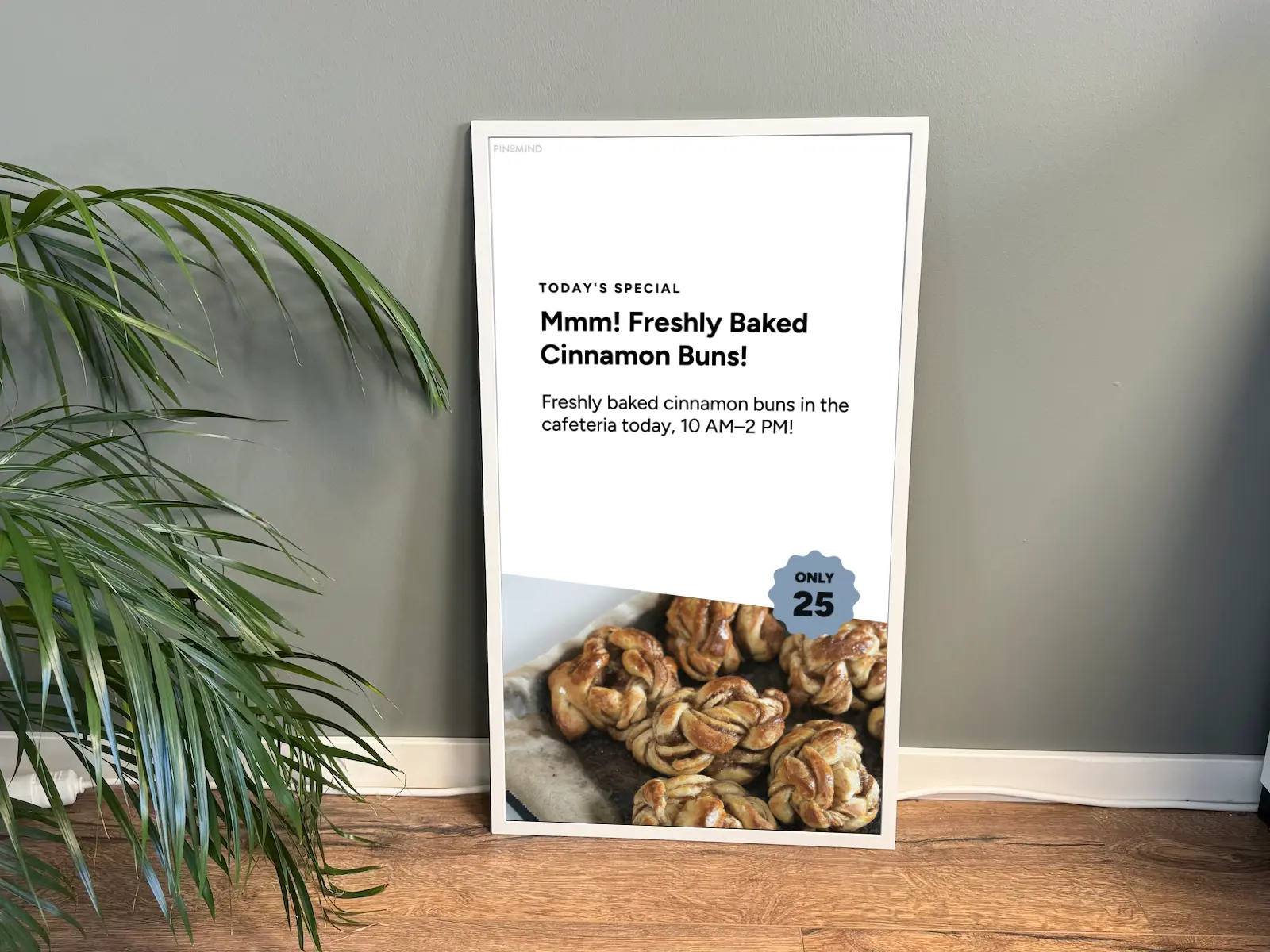
E-Paper is a clever concept. Although it’s a digital display, the image has a paper-like quality that makes the screen look almost like a printed poster. You can now display content from PinToMind on Samsung E-Paper screens. In this article, I’ll take a closer look at what E-Paper is, how to set it up, and what kind of content works well on it.
What is E-Paper?
E-Paper uses digital ink to mimic the appearance of ordinary ink on paper.
The principle behind it is quite elegant: The screen consists of millions of microscopic capsules, each about the diameter of a human hair. Each capsule contains a clear liquid with different types of particles suspended in it, representing black, white and different colours. Electrodes above and below the capsules control which colour appears at each individual point on the screen.
The particles stay in place even when the power is turned off. This means the screen only uses power to check for updates or when the image needs to change – not to keep a static image on display.
Pros and cons of E-Paper
The screen reflects ambient light like ordinary paper rather than producing its own light. This makes it easy to read in sunlight and less tiring on the eyes. On the other hand, it doesn’t work as well in the dark.
Its low power consumption means the screen can run entirely on battery power and can therefore be placed wherever you need it, without access to a power outlet. It can also be connected to a power supply.
Samsung states that the screen has a battery life of around 200 days, but this depends on several factors, including how often the content is updated. In most cases, the actual battery life will therefore be considerably shorter.
One drawback of these screens is that changing the image takes quite a while – up to a minute. They’re not designed for frequent changes either, partly because this would drain the battery more quickly.
For the same reason, E-Paper screens spend most of their time asleep. Unlike a regular digital signage screen, they’re not continuously online and connected to the network. The screen wakes up once a day, retrieves any new content, displays it, and then goes back to sleep.
This limits the types of content that work well on an E-Paper screen. Content that needs to change several times a day is not recommended.
Setting up Samsung E-Paper with PinToMind
For detailed instructions on setting up your screen with PinToMind, see our dedicated E-Paper setup guide in our support centre.
The initial setup is done using the Samsung E-Paper mobile app (Samsung’s own app). You use it to pair the screen with your phone, connect it to Wi-Fi, and then install the PinToMind player app for E-Paper on the screen.
The PinToMind player app for E-Paper is set to wake the screen once a day, at a random time between 1:00 and 3:00 am. When the app wakes up, it first checks that it can connect to the server, then loads the content and waits a few minutes to make sure everything is ready on the screen. Once that’s done, it goes back to sleep. In total, the screen is awake for around three minutes.
You can also force an update whenever you want by pressing the POWER button on the screen. This wakes the app and reloads the content. Each time the screen wakes up, it uses a little extra battery, but this is a perfectly fine way to update the content straight away when needed.
What kind of content can be displayed on E-Paper?
As mentioned, E-Paper isn’t a regular digital screen and can only display one static image at a time. Moving elements such as video, animations, scrolling and fading cannot be displayed on an E-Paper screen.
In PinToMind, you should therefore create a simple channel with no more than one post in each area for your E-Paper screen. Post types such as Text & Image, Posters, Album/Image, Scores & Fixtures and Calendar all work very well.
Five tips for using E-Paper
- High contrast and large areas of colour. Dark text on a light background works best.
- Use large font sizes. Small, thin text and very fine lines can disappear on the display.
- Avoid moving elements, such as video, animations or scrolling.
- Static content that stays in the same place over time can cause burn-in. Avoid keeping logos, headings or frames in fixed positions on the screen for long periods.
- Poor Wi-Fi coverage is one of the biggest hidden drains on the battery: the screen has to stay awake longer while trying to connect.







 Show details

 Back to top